What if your Android home screen didn’t have to look like every other smartphone?
For years, Android launchers have followed almost the same formula: rows of icons, folders, widgets, and a familiar app drawer. It works, but after using the same layout every day, your phone can start to feel predictable.
That’s where Nocebo Launcher takes a completely different approach.
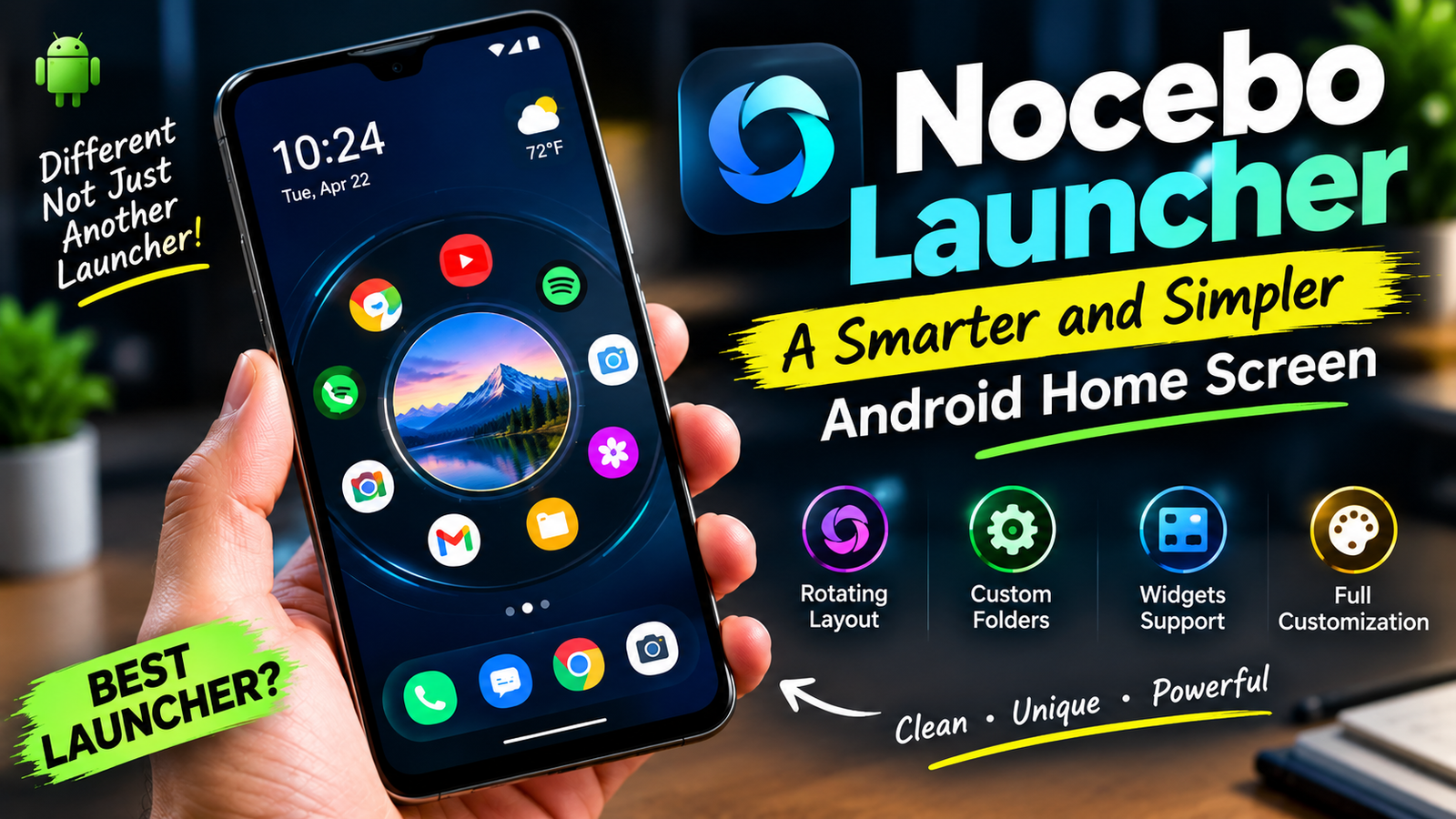
Instead of simply changing your icons or adding another collection of wallpapers, Nocebo changes the way you interact with your Android home screen. Its signature feature is a rotating, spinner-style layout that replaces the traditional static grid with something much more dynamic.
But does a different interface actually make your phone easier to use?
Let’s take a closer look.
A Completely Different Android Home Screen
The biggest thing that separates Nocebo Launcher from conventional Android launchers is its spinning layout.
Instead of having applications permanently positioned in a standard grid, the launcher organizes them around an interactive rotating interface. You can move through your apps by interacting with the spinner, creating an experience that feels closer to a physical control than a typical home screen.
This is important because Nocebo isn’t simply trying to make Android look different.
It is changing the interaction itself.
For users who enjoy experimenting with smartphone interfaces, that alone can make the launcher interesting.
Rather than tapping through multiple pages or searching through a crowded home screen, you can interact directly with the rotating layout and build a system around the applications you use most.
Designed With One-Handed Use in Mind
One of the interesting ideas behind Nocebo is comfortable smartphone interaction.
Modern phones have become larger and taller, and reaching every part of the screen with one hand isn’t always convenient. The launcher was originally developed as a personal project with one-handed use in mind, particularly on larger phones.
That makes the spinning concept more than just a visual gimmick.
The goal is to create an interface where frequently used applications can remain easy to reach without requiring you to constantly stretch your thumb across the display.
Of course, whether it feels comfortable depends on your phone, hand size, and personal habits.
But the concept is certainly different from simply putting smaller icons on a standard grid.
Customization Goes Beyond Wallpapers
Many Android launchers advertise customization, but often that means changing wallpapers, icon packs, or grid sizes.
Nocebo goes much further.
The launcher allows users to customize the central area of the spinning interface with a personalized sticker. This gives the home screen a visual focal point that can be changed to match your personality or overall theme.
You can also customize different parts of the interface, allowing the launcher to move from a simple minimalist setup to a much more personalized design.
That flexibility is useful because not everyone wants the same smartphone experience.
One person might prefer a clean, almost empty home screen.
Another might want colorful icons, widgets, folders, animations, and a highly customized layout.
The launcher is designed to accommodate both approaches.
Your Home Screen Can Feel More Personal
A smartphone is something you interact with hundreds of times.
Because of that, small design choices can have a surprisingly large impact on how the device feels.
The center sticker is a good example.
Instead of having the middle of your home screen remain another empty space, you can turn it into a visual identity for your setup.
It could be a personal image, a graphic, or another design that fits your theme.
Combined with custom icons and wallpapers, this can make the phone feel much more personal rather than simply looking like the default Android interface.
The App Drawer Keeps Things Organized
A unique home screen is useful, but customization should not come at the cost of organization.
Nocebo includes a dynamic app drawer that supports features such as drag-and-drop organization, custom folders, and widget integration.
That means you can keep your main home screen visually clean while still organizing a large collection of applications.
For example, instead of placing every social media, productivity, shopping, and entertainment app directly on your home screen, you can organize them into folders and access them through the app drawer.
This gives you a useful balance between aesthetics and practicality.
Widgets Still Have a Place
A minimalist home screen does not necessarily mean giving up useful information.
Widgets can be extremely convenient for weather, calendars, music controls, reminders, notes, and other everyday tasks.
Nocebo supports widget integration, so users can still build a functional home screen instead of creating a purely decorative interface.
This is important because a launcher should not only look good.
It should also help you get things done.
The ideal setup is one where the applications and information you need are immediately available, while everything else stays organized in the background.
A Launcher for People Who Like to Experiment
Nocebo Launcher probably isn’t aimed at someone who wants their Android phone to look exactly like the default interface.
Its biggest appeal is experimentation.
If you enjoy testing different icon packs, wallpapers, gestures, animations, and layouts, Nocebo gives you plenty of room to build something unique.
The launcher supports different customization options and lets users configure the experience around their own preferences.
That makes it particularly interesting for Android enthusiasts who consider customization part of the smartphone experience itself.
Instead of asking, “How can I make my phone look like everyone else’s?”
The question becomes:
“How different can I make my phone while keeping it practical?”
The Learning Curve
There is one important thing to remember.
A completely different interface can take some time to learn.
If you have spent years using a traditional Android launcher, your muscle memory is already built around familiar grids, folders, and gestures.
Nocebo changes that experience.
The spinning interface may feel unusual during the first few minutes or even the first few days. You have to learn where your favorite apps are and how the interaction works.
But that isn’t necessarily a disadvantage.
Once you become familiar with the system, the unusual interface can become part of the appeal.
It’s similar to switching from a traditional keyboard shortcut system to a new productivity workflow. At first, everything feels slower. With practice, it can become second nature.
Performance Matters Too
A launcher is one of the most important pieces of software on an Android phone because you interact with it every time you return to the home screen.
That means responsiveness matters.
Nocebo has continued receiving updates that include improvements such as memory optimization and fixes related to animations and haptic feedback.
However, the real-world experience can still vary from one smartphone to another.
A flagship phone with a fast processor and plenty of memory may handle animations differently from an older budget device.
That’s why the best way to judge a launcher is not simply by looking at screenshots.
Use it.
Navigate through your apps.
Try your usual gestures.
Open widgets.
Test your daily routine.
After a few days, you’ll know whether the interface actually makes your phone more enjoyable.
Privacy Is Worth Considering
Whenever you install a third-party launcher, privacy is another factor worth checking.
A launcher can potentially have access to important parts of the smartphone experience because it sits at the center of your everyday navigation.
According to the current Google Play listing, Nocebo declares that it does not collect data and does not share data with third parties. The listing also explains that AccessibilityService and Device Administrator permissions are optional and used for specific functions rather than being required for everyone.
As with any app, users should still review the permissions shown on their own device and make sure they understand what they are enabling.
That is especially important when using optional system-level features.
Is Nocebo Launcher Actually Simpler?
This is where the title becomes interesting.
Nocebo is certainly different, but “simpler” depends on what you mean by simplicity.
Visually, it can create a cleaner and more personalized experience.
But functionally, it offers a lot of customization.
You can configure animations, organize applications, use folders and widgets, customize icons, and personalize the central area.
So Nocebo isn’t necessarily simple because it has fewer features.
Instead, its simplicity comes from giving you the ability to design the interface around your own habits.
You decide what deserves attention.
You decide what stays on the main screen.
And you decide how your applications should be organized.
Who Should Try Nocebo Launcher?
Nocebo Launcher makes the most sense for Android users who are bored with traditional home screens.
It is particularly interesting for people who enjoy customization, want a distinctive interface, or frequently use their phone with one hand.
It can also appeal to users who simply want to experiment with a completely different way of navigating Android.
On the other hand, if you want a completely conventional Android experience with no learning curve, the default launcher on your phone may be more comfortable.
There is nothing wrong with the traditional approach.
The advantage of Nocebo is simply that it gives you another option.
Download
Conclusion
Nocebo Launcher is interesting because it doesn’t try to win users by offering another collection of ordinary icons and wallpapers.
Instead, it changes the fundamental idea of the Android home screen.
The rotating interface is its defining feature, while customization options, app organization, widgets, gestures, and personalization make it more than just an experiment.
It may take some time to learn, especially if you’re accustomed to a traditional Android grid.
But once you understand the concept, the experience can feel fresh, personal, and surprisingly engaging.
And that’s ultimately what makes Nocebo Launcher worth talking about.
Your smartphone doesn’t have to look or behave exactly like everyone else’s.
Sometimes, changing the way you interact with your phone can be just as interesting as changing the way it looks.
Nocebo Launcher offers exactly that: a different way to experience Android, built around movement, customization, and a home screen that feels uniquely yours.