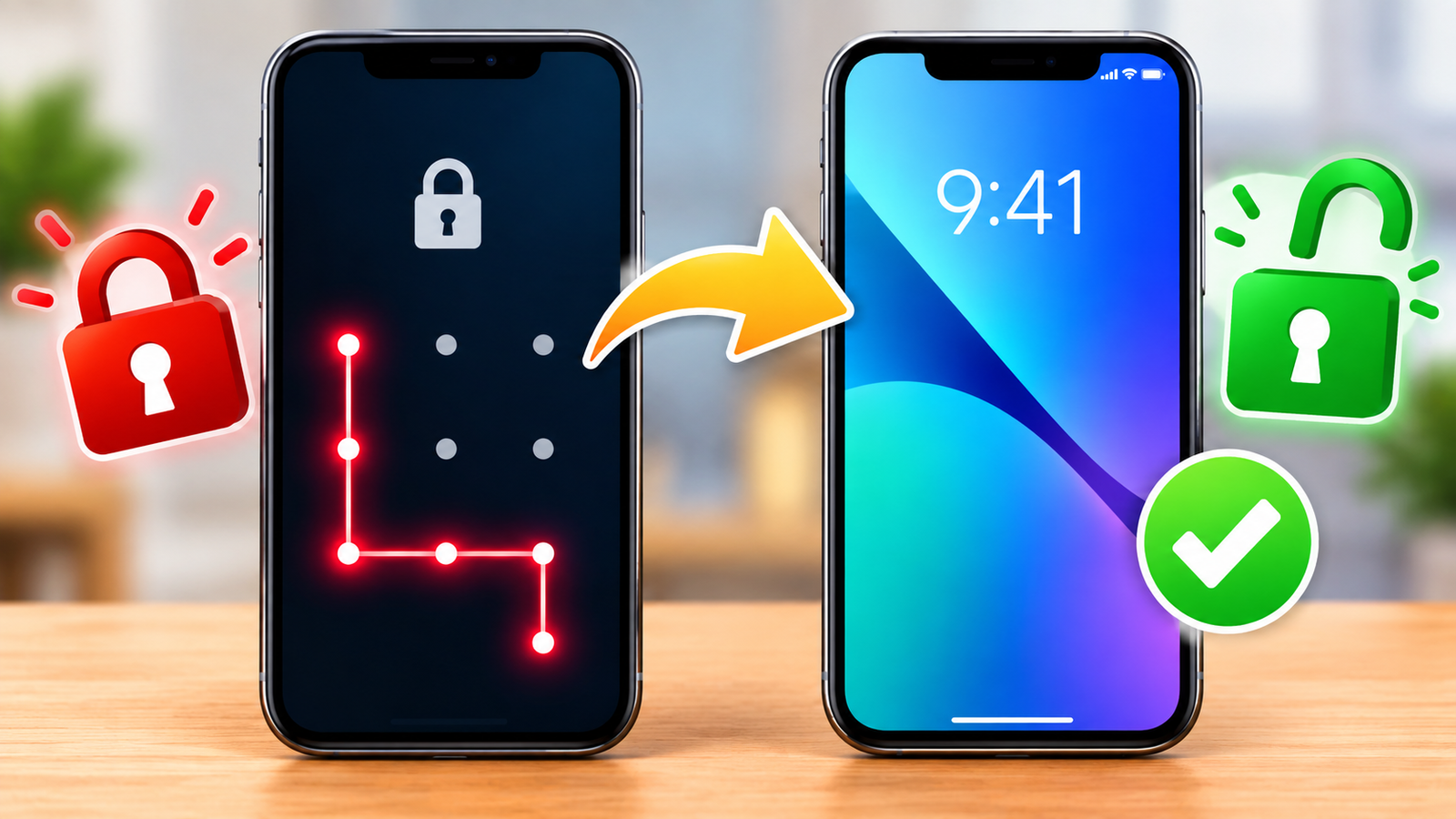
How to Unlock Your Phone If You Forgot the Screen Lock
Forgetting your phone’s screen lock password, PIN, or pattern can be frustrating, especially when you need important files, contacts, photos, or apps stored on the device. Fortunately, there are several official ways to regain access to a locked phone.
The correct method depends on your phone brand, operating system, Android or iPhone, and whether you still have access to the account connected to the device. Some methods can unlock the phone without deleting your personal information, while others require a factory reset.
In this guide, you will learn what to do if you forgot your phone password, PIN, or pattern and how to recover access using safe and official methods.
What to Do Before Trying to Unlock Your Phone
Before performing a reset or recovery procedure, take a moment to check a few things. You may be able to regain access without losing your data.
First, make sure you are entering the correct password or PIN. If you recently changed your screen lock, try to remember whether you created a new PIN instead of using your previous one.
If your phone uses a fingerprint or face unlock feature, check whether it is still available. Some phones may allow biometric authentication under certain circumstances, although a phone can require the primary PIN, password, or passcode after a restart or security-related event.
You should also remember the Google Account or Apple Account connected to the phone. Account credentials can become important if you need to reset the device and activate it again.
If your photos and files were synchronized with cloud services, check whether they are already backed up before choosing an option that erases the phone.
Can You Unlock a Phone Without Losing Data?
Sometimes, yes, but there is no universal method that safely removes a forgotten screen lock while keeping all data.
Modern smartphones are designed so that the screen lock protects encrypted personal information. Because of this, legitimate recovery options generally require you to prove ownership through an existing account, use a previously configured recovery feature, or erase the device and set it up again.
Be careful with websites and applications that promise to remove any Android or iPhone password without data loss. Many such services are unreliable, may not support your particular device, or may ask for unnecessary access to your phone or computer.
The safest approach is to use recovery tools provided by the phone manufacturer or operating-system provider.
Method 1: Try Your Existing Biometric Unlock
If you normally unlock your phone with a fingerprint or Face Unlock, try that first.
Depending on the device and its security state, biometric authentication may still be available. However, it is normal for a phone to require the main PIN, password, or passcode after certain events.
For example, a device may require the primary screen-lock credential after:
- Restarting the phone
- Installing certain system updates
- Going a period without being unlocked
- Changing security settings
- Multiple failed biometric attempts
- Other security-related conditions
If the phone is asking specifically for the original PIN or password, repeatedly attempting fingerprints or facial recognition will not necessarily solve the problem.
In that situation, move to the official recovery options for your device.
Method 2: Use Android’s Official Find Hub
Android devices can often be located and managed through Google’s device-finding service, now known as Find Hub.
This service is primarily designed for locating, securing, and managing a lost Android device. If you have forgotten the screen lock, it is important to understand that remote device-management features do not provide a general-purpose way to bypass a forgotten PIN or password while preserving encrypted data.
If your phone is connected to your Google Account and the required device-finding features are enabled, you may be able to use the service to locate the phone or perform an erase.
An erase is useful when you have accepted that the device needs to be reset.
Before remotely erasing an Android phone
Check the following:
- You know the Google Account used on the phone.
- You can sign in to that account.
- The phone has enough connectivity for the remote command to reach it.
- You understand that erasing the phone removes locally stored data.
- You know the Google Account credentials that may be requested during setup afterward.
Remote erase should be considered a last-resort recovery option, not a way to preserve the contents of a locked device.
Method 3: Use Samsung’s Official Recovery Options
Samsung Galaxy phones have additional account-based services and recovery options that can vary depending on the device model, software version, and settings that were enabled before the phone became inaccessible.
If you have a Samsung phone, sign in to the Samsung account associated with the device and check the available device-management options.
However, do not assume that every older Samsung feature is still available on newer devices. Samsung has changed its remote device-management functionality over time, so the options displayed for your particular Galaxy phone may be different.
If an official Samsung service does not provide a non-destructive recovery option for your device, the remaining supported solution may be a factory reset.
Method 4: Use Android Recovery Mode
If you cannot access the phone normally, a factory reset through the device’s recovery environment may be an option.
This method is available on many Android phones, although the exact button combination and menu layout can differ between manufacturers.
A typical recovery process involves:
- Turning the phone off.
- Entering the device’s recovery mode using the manufacturer’s button combination.
- Selecting the factory reset or wipe-data option.
- Confirming the reset.
- Restarting the phone.
- Completing the initial Android setup.
The exact steps vary considerably between brands such as Samsung, Xiaomi, Redmi, OnePlus, Motorola, Google Pixel, OPPO, Vivo, and others.
Important warning about Recovery Mode
A factory reset normally deletes the information stored locally on the phone.
That can include:
- Photos stored only on the device
- Downloaded files
- Locally stored videos
- App data
- Messages that were not backed up
- Device settings
- Offline documents
- Other personal information
For this reason, do not perform a factory reset simply because you want to try something.
If your data is important, first determine whether it has already been backed up to your Google Account, Google Photos, cloud storage, a computer, or another backup service.
Method 5: Recover Your Google Account Before Resetting
A factory reset does not necessarily remove the security requirements associated with the device.
Many modern Android phones use Factory Reset Protection, commonly called FRP. This security feature helps prevent unauthorized use of a device after it has been reset.
After resetting the phone, you may be asked to sign in with a Google Account that was previously associated with the device.
Therefore, if you forgot both the screen lock and your Google Account password, recover your Google Account first.
This is especially important if you purchased the phone recently or received it from someone else.
Why Google Account recovery matters
Imagine that you reset a locked phone and then reach the setup screen. If the device requests the previous Google Account and you cannot remember the credentials, you may not be able to complete activation normally.
Recovering the account before resetting the phone can prevent this problem.
Never rely on unofficial websites claiming to provide a guaranteed FRP bypass. These methods can be unsafe, unreliable, or incompatible with current Android security.
What happens to your iPhone data?
Restoring an iPhone after a forgotten passcode erases the device.
However, if you previously used iCloud or another backup method, you may be able to restore your personal information during setup.
Your contacts, photos, messages, application data, and other information will depend on what was synchronized or backed up before the phone became locked.
Method 8: Use Find My to Erase an iPhone
If Find My was enabled before you lost access to the iPhone, Apple’s device-finding service can be useful for remotely managing the device.
If necessary, you may be able to erase the iPhone remotely through your Apple Account.
This does not reveal the forgotten passcode. Instead, it removes the information from the device so that it can be set up again.
The process generally requires:
- Your Apple Account credentials
- The iPhone to be associated with your account
- The required Find My functionality to have been enabled
- The device to connect to the internet so the command can be received
After the erase, you may still need to sign in with the Apple Account associated with the device because of Apple’s Activation Lock security.
Method 9: Check Your Cloud Backups Before Resetting
Before choosing any method that erases the phone, check your existing backups.
For Android, useful places to check may include:
- Google Photos
- Google Drive
- Google Contacts
- Google One backups
- Manufacturer cloud services
- Other backup applications
For iPhone, check services such as:
- iCloud Photos
- iCloud Contacts
- iCloud Drive
- iCloud Backup
- Other services you previously used for backups
A backup can make a factory reset much less stressful because you may be able to restore much of your information afterward.
Why backups are important
A screen lock is designed to protect the data on your phone. If you forget it, there may be no legitimate method that can both remove the lock and decrypt all protected information.
Regular backups are therefore one of the best ways to prepare for situations like this.
Method 10: Contact the Phone Manufacturer
If you are unsure about the correct recovery process, contact the official support service for your phone brand.
This is particularly useful when:
- The phone is a recent model
- The button combination is unclear
- You are seeing an unfamiliar security message
- The device was reset but asks for account verification
- The phone belongs to you but you cannot remember the associated account
- You are worried about losing important data
Manufacturers can tell you which recovery options are officially supported for your particular model and software version.
You may need proof of purchase or ownership for certain support requests.
What If You Forgot Your Pattern Lock?
A pattern lock is still a form of screen authentication.
On newer Android versions, there is generally no universal official trick that converts a forgotten pattern into an unlocked phone without authentication.
Some older Android versions had specific recovery features that are no longer available on modern devices.
If you cannot authenticate normally, your options may include an account-based recovery feature supported by your specific device or a factory reset.
Do not repeatedly guess patterns for a long time. Depending on the device’s security settings, repeated incorrect attempts can increase the waiting period.
Can a Computer Unlock a Locked Phone?
A computer can help with official recovery and restore procedures, but it should not be treated as a universal password remover.
For example, a computer can be used to restore an iPhone through recovery mode. Some Android manufacturers also provide official computer-based recovery or software tools for specific models.
However, legitimate recovery software does not magically decrypt a modern locked phone without authentication.
Be especially cautious with desktop programs that advertise features such as:
- One-click password removal
- Guaranteed Android unlock
- No data loss on every device
- Permanent FRP removal
- Instant iPhone passcode bypass
- Universal screen-lock removal
Claims like these should be evaluated carefully.
How to Avoid Losing Your Data
If you still have access to your phone through another authentication method, create a backup immediately.
For Android users, make sure important photos, contacts, documents, and other files are synchronized or backed up.
For iPhone users, check iCloud and your existing device backups.
You can also keep important documents in a trusted cloud-storage service.
A good backup strategy can protect your information if you later forget your screen lock or lose the device.
Things You Should Not Do
When searching for a solution online, you may find many questionable instructions.
Avoid:
- Installing unknown APK files that claim to unlock any phone
- Giving your Google or Apple Account password to strangers
- Sharing verification codes with an unknown person
- Using suspicious websites that request remote access
- Following instructions that ask you to disable security protections
- Paying for an alleged guaranteed unlock without verifying the service
- Repeatedly guessing passwords or patterns
- Resetting the device before checking available backups
If an application asks for unusual permissions or requests your account credentials, stop and investigate before continuing.
Final Thoughts
Forgetting your phone’s screen lock does not necessarily mean the device is permanently unusable. The best solution depends on whether you have an Android phone or iPhone, which manufacturer made it, and whether your account and backups are available.
Start with the least destructive option. Check whether you can still authenticate with an available biometric method, recover the account connected to the phone, and verify your cloud backups.
If no supported method can recover access without the screen lock, a factory reset may be the official solution. Remember that resetting the phone can erase locally stored information, so check your backups before proceeding.
Once you regain access, set up a reliable backup routine and make sure you can recover the Google Account or Apple Account associated with your phone. Keeping your recovery information secure can save you a lot of trouble the next time you forget a password or lose access to your device.
