Speaker Sound Not Working? Easy Fixes That Work
Is your phone speaker not producing any sound, or has the volume suddenly become very low? This is a common problem on Android phones and iPhones, and it does not always mean that the speaker is damaged.
Sometimes the problem is caused by a muted volume setting, Bluetooth connection, blocked speaker grille, software glitch, or an app that is controlling audio. Fortunately, you can try several simple fixes before taking your phone to a repair shop.
In this guide, we will explain the most common reasons why your phone speaker is not working and show you what to check step by step.
1. Check the Volume First
The first thing to check is your phone’s volume.
Press the Volume Up button several times while playing a video or music. Make sure the media volume is turned up, because ringtone volume and media volume can be controlled separately on many phones.
On Android, press a volume button and open the expanded volume controls if available. Check the sliders for:
- Media
- Ringtone
- Notifications
- Alarm
On iPhone, you can increase the volume using the physical buttons while audio is playing or adjust it through Control Center.
If the volume was accidentally reduced to zero, increasing it should immediately restore the sound.
2. Make Sure Silent Mode Is Not Causing the Problem
If you are not hearing ringtone or notification sounds, check whether your phone is in Silent Mode or Do Not Disturb.
Silent mode can prevent calls and notifications from making sounds, although it does not necessarily stop media audio.
Also check Do Not Disturb or similar modes such as Focus Mode. These settings can change how calls, alerts, and notifications behave.
If music and videos also have no sound, continue with the next fixes.
3. Turn Off Bluetooth
One of the most common reasons for missing speaker sound is an active Bluetooth connection.
Your phone may still be sending audio to:
- Wireless earbuds
- Bluetooth headphones
- A car stereo
- A smart speaker
- Another Bluetooth audio device
Turn Bluetooth off temporarily and play a video again.
On most phones, you can do this from Quick Settings or Control Center.
If the sound comes back immediately after disabling Bluetooth, your phone’s speaker may be working normally. The audio was simply being routed to another device.
4. Restart Your Phone
A simple restart can fix temporary audio problems.
Software services responsible for sound can occasionally stop responding correctly. Restarting the phone reloads these services and can clear temporary system glitches.
Turn the phone off, wait a few seconds, and turn it back on.
After restarting, test the speaker using a ringtone, video, music track, or speakerphone call.
If sound returns after the restart, the problem was likely software-related rather than a permanent hardware failure.
5. Check the Speaker for Dust or Dirt
If your speaker sounds very quiet, muffled, or distorted, inspect the speaker grille.
Dust, lint, and other small particles can accumulate around the openings and reduce sound output.
You can gently clean the outside of the speaker area with a soft, dry brush.
Avoid pushing anything sharp into the speaker openings. Do not pour liquid into the speaker and avoid aggressive cleaning methods that could damage internal components.
If your phone has recently been exposed to dust or sand, be especially careful when cleaning it.
6. Remove the Phone Case Temporarily
Some poorly designed or damaged phone cases can partially cover the speaker openings.
Remove the case and test the speaker again.
This is particularly useful if the problem started after you installed a new case.
Make sure the speaker openings are properly aligned with the case cutouts.
If the sound becomes normal without the case, you have found the likely cause.
7. Check the App You’re Using
If sound is missing only inside one application, the problem may not be your phone’s speaker.
For example, if YouTube has no sound but your ringtone and other apps work normally, check the application’s volume and settings.
Try playing audio from another source.
You can test:
- A YouTube video
- A saved video
- A music file
- A ringtone preview
- A speakerphone call
If sound works everywhere except one application, update or restart that app and check its individual settings.
8. Check the Audio Output
Some phones allow you to select where audio should play.
If your device has an audio-output selector, make sure Phone Speaker or the internal speaker is selected.
This is particularly important if you frequently use wireless headphones, smart TVs, cars, or other Bluetooth devices.
On Android, the exact options depend on the manufacturer and software version.
On iPhone, check the audio output selector from Control Center or within the application playing the audio.
9. Check If Headphone Mode Is Stuck
Older phones with a headphone jack can occasionally behave as though headphones are still connected.
If the phone shows a headphone icon or refuses to play sound through the speaker after removing wired headphones, reconnect and disconnect the headphones once.
Also check the headphone port for visible dust or debris.
Do not insert sharp objects into the port.
On newer phones without a headphone jack, a similar issue can happen through Bluetooth or another connected audio device.
10. Update Your Phone
A software problem can sometimes affect audio functionality.
Check whether a system update is available for your device.
On Android, the location of software-update settings varies by manufacturer, but it is generally available under Settings > System or a similar section.
On iPhone, check:
Settings > General > Software Update
If an official update is available, install it when convenient.
Updates can include bug fixes and improvements that may resolve problems affecting system functions, including audio.
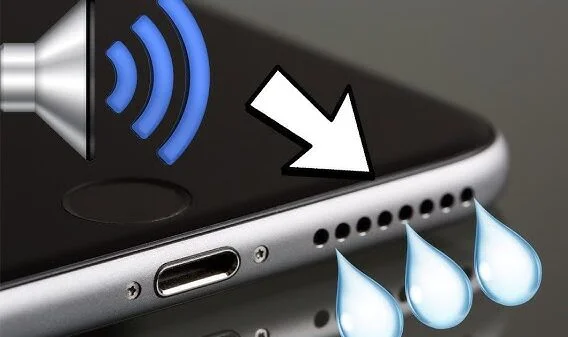
11. Check for Water or Moisture
If your phone recently became wet, the speaker may temporarily sound quiet, distorted, or unusual.
Even phones with water-resistance ratings should not be treated as completely waterproof. Resistance can also change as a device ages or becomes damaged.
If the phone has been exposed to liquid:
- Disconnect chargers
- Avoid deliberately heating the phone
- Do not insert objects into the speaker
- Allow it to dry naturally in a safe environment
- Follow the manufacturer’s guidance
If the speaker remains damaged after the device has dried, professional inspection may be necessary.
12. Test the Speaker During a Phone Call
Make a test call and turn on speakerphone.
If you can hear the other person normally through the regular earpiece but cannot hear anything when speakerphone is enabled, this can help narrow down the problem.
Similarly, if media audio works but speakerphone does not, the issue may involve a specific audio component or software function.
Try several different audio sources rather than relying on just one test.
13. Check Accessibility Audio Settings
Some Android phones and iPhones have accessibility settings that can affect audio balance or output.
Look for settings related to:
- Left/right audio balance
- Mono audio
- Hearing assistance
- Audio routing
- Volume limits
If the balance has accidentally been moved heavily to one side, the sound can appear unusually quiet.
Return the settings to their normal position and test the speaker again.
14. Reset Network or System Settings
If the problem started after changing several settings, resetting certain system settings may help.
However, this should not be your first step.
Depending on your phone, you may have options to reset:
- Network settings
- App preferences
- All settings
A network reset can be useful when Bluetooth or wireless audio connections are behaving incorrectly, but it may remove saved Wi-Fi networks and Bluetooth pairings.
A broader settings reset can affect more preferences, so read the warning shown by your phone before confirming.
15. Boot Android in Safe Mode
If you have an Android phone and the speaker stopped working after installing a third-party application, Safe Mode can help determine whether an app is causing the issue.
Safe Mode starts Android with most third-party applications disabled.
If the speaker works normally in Safe Mode, a recently installed or updated app may be responsible.
You can then uninstall suspicious or recently installed applications and test the phone again.
The exact method for entering Safe Mode varies by Android manufacturer, so use the instructions for your specific phone model.
16. Check Whether the Speaker Is Actually Damaged
If none of the software fixes work, hardware damage becomes more likely.
A speaker can be affected by:
- Physical impact
- Water or liquid exposure
- Dust buildup
- Internal component failure
- A damaged speaker module
- Problems with the phone’s audio circuitry
Signs of possible hardware damage include:
- No sound from any application
- Very low sound even at maximum volume
- Crackling or buzzing
- Distorted audio
- Sound that cuts in and out
- Speaker failure after a drop or liquid exposure
If these symptoms continue, professional repair is usually the safest option.
17. Don’t Immediately Factory Reset Your Phone
A factory reset is sometimes recommended for software problems, but it should not be the first solution for a speaker issue.
A reset removes personal information and returns the phone to its initial setup state.
Before considering a factory reset, try the simpler solutions:
- Increase media volume.
- Disable Bluetooth.
- Restart the phone.
- Remove the case.
- Clean the speaker carefully.
- Test another application.
- Install available software updates.
- Check audio settings.
- Test speakerphone.
- Consider professional diagnosis.
If a factory reset is eventually necessary, back up your important information first.
Speaker Sound Is Low but Not Completely Gone
If your speaker still works but the volume is unusually low, the cause is often different from a completely silent speaker.
Start by checking for:
- Dust around the speaker grille
- A case blocking the opening
- Bluetooth audio routing
- Media-volume settings
- Audio balance settings
- Water exposure
- Software problems
Also compare the sound with headphones or another audio device.
If headphones sound normal but the built-in speaker remains extremely quiet, the speaker itself may require inspection.
Speaker Works With Headphones but Not Without Them
This is another useful clue.
If wired or Bluetooth headphones produce normal sound but the phone’s built-in speaker produces nothing, the problem is likely related to the phone’s internal speaker, audio routing, or software.
First disconnect all external audio devices and restart the phone.
Then test a ringtone and media playback.
If the built-in speaker still does not work, check the manufacturer’s troubleshooting instructions or contact an authorized repair provider.
When Should You Visit a Repair Shop?
Consider professional help when:
- The phone was dropped before the problem started.
- The phone was exposed to water.
- The speaker produces constant crackling.
- There is no sound from any source.
- The speaker remains silent after restarting.
- Software updates do not help.
- The speaker is physically damaged.
- The phone has other hardware problems.
If the device is still under warranty, check the manufacturer’s warranty terms before paying for a repair.
Avoid opening the phone yourself unless you have the appropriate technical experience and tools.
Final Thoughts
A phone speaker that suddenly stops working can often be fixed without replacing any hardware. Start with the easiest checks, especially volume settings, Bluetooth, audio output, phone restart, speaker blockage, and the app you’re using.
If the problem affects only one application, focus on that app. If every source is silent, investigate the phone’s system settings and hardware.
For phones that have been dropped, exposed to water, or developed crackling and distorted audio, professional inspection may be the better choice.
The important thing is to test one solution at a time. This makes it easier to identify the actual cause instead of changing multiple settings unnecessarily.