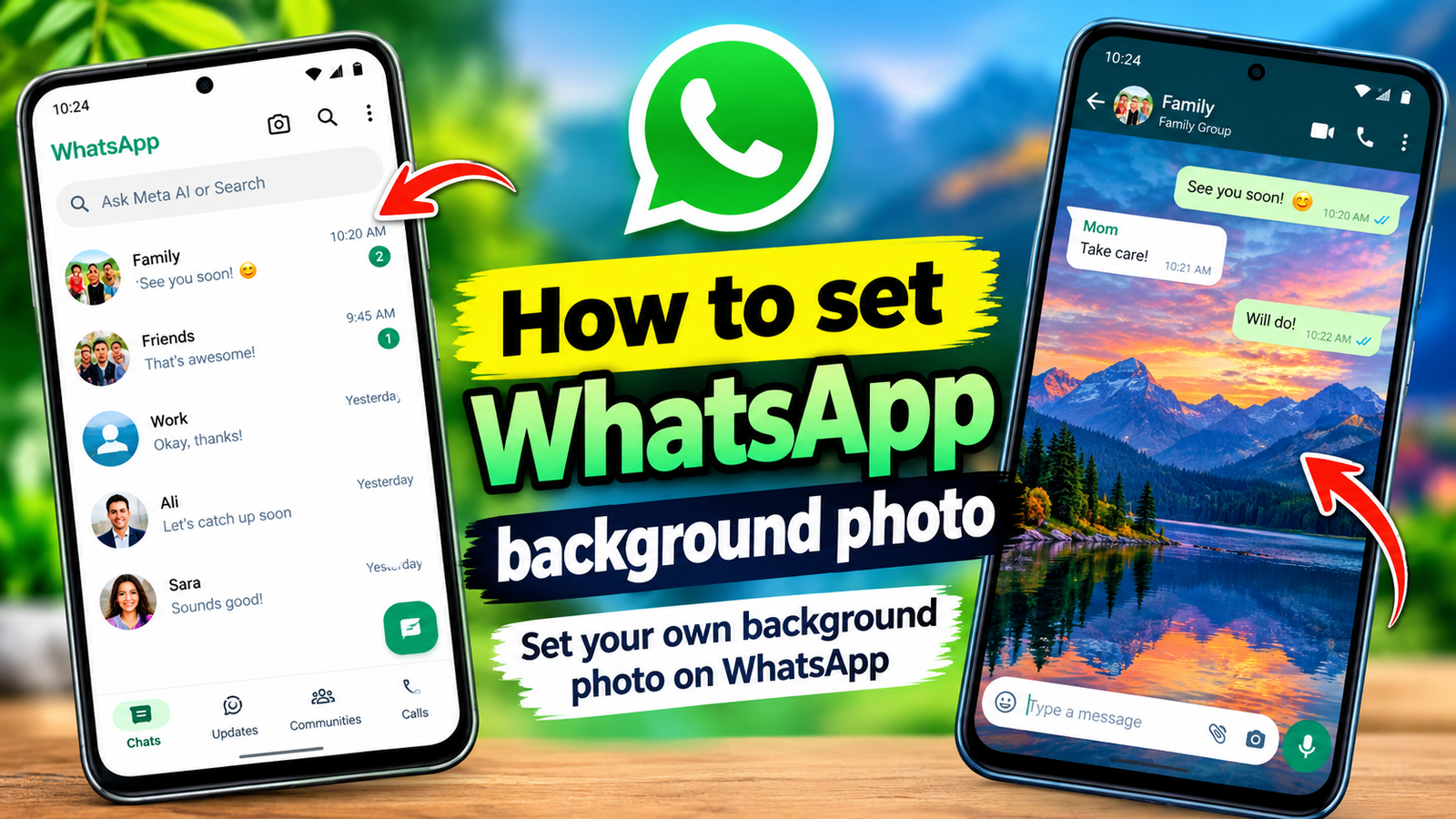
Have you ever looked at your WhatsApp chats and thought they could feel a little more personal?
Maybe you want to use a favorite photo, a beautiful landscape, a picture of your pet, a family memory, or simply a wallpaper that matches your style.
WhatsApp gives you a simple way to personalize your conversations by changing the chat wallpaper. Instead of keeping the standard WhatsApp background, you can choose a different design or use a photo from your own phone.
And the best part is that you don’t need a separate wallpaper app or complicated customization tool.
In just a few steps, you can give your WhatsApp chats a completely different appearance.
In this guide, we’ll explain how to set a custom WhatsApp background photo, how to apply it to all chats, how to use a different photo for a specific conversation, and a few tips to make sure your new wallpaper looks great without making your messages difficult to read.
First, Understand What WhatsApp Background Means
Before changing anything, there is one important detail to understand.
When people search for “WhatsApp home screen background photo,” they may be referring to the background they see behind their conversations.
WhatsApp officially refers to this as the chat wallpaper.
This is the image that appears behind your messages when you open a conversation.
Changing this wallpaper does not replace your phone’s home-screen wallpaper, and it does not turn the entire WhatsApp interface into a photo.
Instead, it changes the visual background inside your chats.
That distinction is important because WhatsApp’s customization system is primarily designed around chat themes, chat colors, and wallpapers.
How to Set a Photo for All WhatsApp Chats
If you want the same personal photo to appear behind all of your WhatsApp conversations, you can change the default chat wallpaper.
On current versions of WhatsApp, open WhatsApp and go to Settings.
Depending on your version and device, you may see an Appearance option.
From there, look for Default chat theme.
Inside this section, you can customize the appearance of your chats.
Select Wallpaper, and WhatsApp will provide different wallpaper choices.
If you want to use your own picture, look for the option that allows you to Choose from Photos.
Select it and choose the image you want to use from your phone.
Once the photo appears in the preview, adjust it if necessary and confirm the selection.
Your chosen image can then become the background for your WhatsApp chats.
The exact wording of buttons can vary slightly between Android, iPhone, and different WhatsApp versions, but the basic process remains straightforward.
Choose the Right Photo
Choosing the right image is more important than you might think.
A beautiful photograph isn’t always a good chat wallpaper.
Remember that your WhatsApp messages will appear on top of the image.
If your picture contains lots of bright colors, faces, objects, or complicated details, the text can become harder to read.
For the best result, consider using an image with some empty or darker areas.
A simple landscape can work very well.
A dark city photograph can also look excellent, especially if you use a dark WhatsApp theme.
Even a simple gradient or abstract image can make your chats feel more modern without distracting you from the conversation.
The goal is not just to find the most beautiful picture.
The goal is to find a picture that works well behind text.
How to Set a Background for One Specific Chat
You don’t have to use the same wallpaper everywhere.
WhatsApp also allows you to customize individual conversations.
This can be useful if you want a special background for a particular person, group, or type of conversation.
Start by opening the WhatsApp chat you want to customize.
Then open the chat’s information or customization area and look for Chat Theme.
From there, select Wallpaper.
You can choose one of the available wallpapers or select a photo from your phone.
Choose your image, preview it, and confirm the change.
Now that particular conversation can have its own customized appearance.
This is a great option if you want to keep most of your WhatsApp chats simple while giving one or two important conversations a more personal style.
You Can Mix Wallpapers With Chat Colors
WhatsApp’s customization isn’t limited to the background.
Current WhatsApp versions also allow users to customize elements such as the chat theme and chat bubble color.
This means you can create a combination that looks much better than simply placing a random photo behind your messages.
For example, imagine you choose a dark blue photograph.
You could pair it with a complementary chat color to create a consistent visual style.
Or you could choose a soft pastel background and use a matching chat color for a more relaxed appearance.
The goal is to make the background and message bubbles work together rather than compete with each other.
What If You Use Dark Mode?
Dark Mode can completely change how your WhatsApp wallpaper looks.
A photo that looks bright and attractive in Light Mode may appear very different when you’re using a dark interface.
If you prefer dark mode, consider choosing darker wallpapers or images with muted colors.
This can make the overall interface feel more comfortable, especially at night.
It can also make white or light-colored message text easier to see.
On the other hand, if you’re using Light Mode, brighter photographs and lighter backgrounds can work well.
The best combination depends on your personal preference and the image you choose.
Make Sure the Photo Has Good Resolution
Another important consideration is image quality.
If you choose a very small or heavily compressed photograph, WhatsApp may stretch it across the chat area.
That can make the image look blurry.
A high-resolution photo will generally produce a cleaner result.
You also want to consider the shape of the image.
A portrait photograph may need to be cropped differently than a landscape photograph.
If the image contains an important subject—such as a person, pet, car, or building—make sure the subject remains visible after cropping.
Before applying the wallpaper, use the preview to check how the composition looks.
Avoid Overly Busy Images
One of the biggest mistakes people make with chat wallpapers is choosing an image that is too complicated.
Imagine placing a detailed city photograph behind a conversation.
There might be buildings, lights, cars, signs, people, and hundreds of small details.
Now imagine trying to read a message on top of all of that.
It can become visually tiring.
A simpler photo often produces a much better result.
Soft gradients, blurred backgrounds, dark landscapes, simple textures, and photographs with large areas of consistent color can all work extremely well.
Your wallpaper should support your messages, not compete with them.
Can You Use Your Own Personal Photo?
Yes.
If the current WhatsApp version on your device provides the photo-selection option, you can choose an image from your phone’s Photos or Gallery.
This means you aren’t limited to WhatsApp’s built-in wallpapers.
You can use a picture you took yourself, a downloaded wallpaper, an abstract design, or another image stored on your device.
This is what makes the feature particularly useful for personalization.
Instead of having exactly the same background as millions of other users, you can create a chat environment that feels more like your own.
What About AI-Generated Wallpapers?
WhatsApp has also introduced AI-powered wallpaper creation in supported versions and regions.
With this feature, users can describe an image they want and use an AI-generated result as a chat wallpaper.
For example, you might describe a futuristic blue city, a peaceful mountain landscape, a minimalist black-and-gold design, or another visual concept.
If the Create with AI option is available on your WhatsApp account, you can use it to generate a wallpaper directly within WhatsApp.
However, availability can vary by country, account, language, and version.
So if you don’t see the option, it doesn’t necessarily mean something is wrong with your phone.
The feature may simply not be available to your account yet.
How to Get the Best Looking WhatsApp Background
If you want your WhatsApp background to look professional and clean, there are a few simple rules to follow.
First, choose a high-quality image.
Second, avoid extremely bright or complicated pictures.
Third, make sure the important parts of the image aren’t hidden by your messages.
Fourth, consider matching the wallpaper with your chat bubble color.
And finally, preview the result before keeping it.
Sometimes an image looks amazing in your Gallery but doesn’t work well as a chat wallpaper.
The preview is the easiest way to find out.
Why Customize Your WhatsApp Background?
At first, changing a chat wallpaper may seem like a very small customization.
And technically, it is.
But small details can make frequently used apps feel more personal.
WhatsApp is something many people open dozens of times throughout the day.
If you’re going to spend that much time looking at the same interface, why not make it look the way you like?
A personalized wallpaper can also help differentiate certain chats.
For example, you could use one style for personal conversations and another for work-related chats.
You could keep your main chats simple while giving a favorite conversation a completely different visual identity.
It’s a small change, but it can make the experience feel much less generic.
If You Don’t See the Wallpaper Option
If you can’t find the wallpaper or chat theme settings, the first thing to check is whether you’re using the latest version of WhatsApp available for your device.
WhatsApp regularly changes its interface, and menu names can move as new features are introduced.
Also remember that Android and iPhone may display settings differently.
Some features are introduced gradually, so two users can occasionally see slightly different customization options even when they’re using WhatsApp at roughly the same time.
If a feature isn’t available, check for an update and try again later.
Final Thoughts
Setting a custom WhatsApp background photo is one of the easiest ways to personalize your chats.
You don’t need to modify your phone, install an unofficial version of WhatsApp, or use complicated third-party tools.
Simply choose a photo that works well with your messages and apply it through WhatsApp’s built-in chat customization options.
So if your WhatsApp chats still have the standard background, try switching things up.
Choose your favorite photo, open the chat customization settings, select your wallpaper, preview it, and set it.
Download
In just a few moments, your WhatsApp chats can have a background that feels much more personal and completely your own.